skip to main |
skip to sidebar
There was a question for me how we can change the date format mask when we choose a value from a calendar. It always shows date in format d.m.yyyy no mather what settings we have in localedefinitions.xml files. Only date order and date separator is populated from localdefinitions.xml (example, dateOrder is dmy and dateSeparator is -). So if you have been read my previous posts How to change date format mask in date dashboard prompts - drop-down list and calendar and Date between in filter and title when using presentation variable from calendar dashboard prompt or drop-down list in OBIEE you know that we used d.m.yyyy date format in calendar for selecting value from it, for default value from a repository variable and for parsing into presentation variable.
Javascripts are used for calendar prompts. To see which scripts are used here you must open your calendar dashboard prompt and see the source that is generated with view source. This will give you the order of scripts that are executed.
What now if I want to change date format mask in calendar so that it shows me for example 1-Jan-2009 format when I take a value from it? And also I want 1-Jan-2009 format to be the first value (default, from a repository variable) when I start this prompt.
Step 1 - default repository variable from initialization block

Leave this as in previous posts, default date is in character format dd.mm.yyyy and OBIEE will do implicit conversion to a date format which we have defined in dateShortFormat in localedefinitions.xml.
Step 2 - localedefinitions.xml
Depends on our locale settings these entries need to be modified:

dateShortFormat -> d-MMM-yyyy
This format is for default values.
dateSeparator -> -
This separator we expect after picking up the value from a calendar.
dateOrder -> dmy (like in previous posts)
This date order we expect after picking up the value from a calendar
Step 3 - view prompt source

Date short format, date order and short month names:

NQCShowCalendar function (on click):
NQCShowCalendar
(
document.getElementById('saw_11_6'),
document.getElementById('saw_11_4'),
null,
null,
false,
null,
nqcalmns,
nqdfmt,
nqdsep);
Step 4 - modify calendar.js javascript file to show a month abbreviation instead of month number
We use calendar.js from location \OracleBI\oc4j_bi\j2ee\home\applications\analytics\analytics\res\b_mozilla, not from location \OracleBI\web\app\res\b_mozilla.
These are default values and they are populated in NQCShowCalendar function:

RgMN array is populated with nqcalmns=new Array('Jan','Feb','Mar','Apr','May','Jun','Jul','Aug','Sep','Oct','Nov','Dec') which we see in view source. Nqcalmns depends on locale settings (login language, localedefinitions.xml):

We need to call rgMN array in NQCSetDate function so we modify current code with the new one (just put in comment old part of the code):

Step 5 - save, restart presentation service and test
I made a dashboard page with report in Answers and a calendar dashboard prompt:


I put here in filter 1-Jan-1999 as default value so I need to alter session to a English language because my database is in Croatian. This I'll do in Administrator:

Initial start (prompt is filled with repository variable):

NQQuery.log:
*Note that at initial dashboard start, the default 01.01.1999 is going directly into presentation variable so that's way we see it in SQL in NQQuery.log. After we pick up a new date from a calendar or refresh the same we will see new format in NQQuery.log (1-Jan-1999).
Choosing another date from a calendar:

NQQuery.log:

If you run all these statements in database:
select 1 from times where time_id='6-Jan-1999'--our example
select 1 from times where time_id='06-Jan-1999'
select 1 from times where time_id='6-JAN-1999'
select 1 from times where time_id='06-JAN-1999'
select 1 from times where time_id='6-jan-1999'
select 1 from times where time_id='06-jan-1999'
you can see that in all cases Oracle use TIMES_PK index, so implicit conversion char to date is present according to NLS settings in session/database.
if someone knows easier way to change month number to a month abbrevation for a calendar date prompt like I described in this post or to any other format please let me know.You can change date order and separator from a localedefinitions.xml but it's not what we want to (for example 1.1.1999, 1/1/1999, 1999/1/1, 1999-1-1, etc).
In my previous post how to change date format mask in date dashboard prompts - drop-down list and calendar I showed my solution of date format problem when using drop-down list and calendar dashboard prompt and repository variable as default. I use same prompts and localedefinitions.xml settings as in my previous post.
Now we need to create a report in Answers and then show date prompts in report title. First we use a calendar prompt for input which is in d.m.yyyy format and later in drop-down prompt which is in dd.mm.yyyy format. According to input formats our output format will be the same for both calendar and drop-down list and will be something like Amount sold from date dd.mm.yyyy to date dd.mm.yyyy. You can see that although we have two different date formats as inputs (d.m.yyyy for calendar and dd.mm.yyyy for drop-down list) there is only one format in title (dd.mm.yyyy) and it is with leading zeros for date and months values.
Example 1 - using calendar date prompts in filter and report title
Dashboard prompts:

Column formula for the first calendar date prompt:
case when 1=2 then TIMES.TIME_ID else cast ('1.1.1900' as date) end
and for the second:
case when 1=2 then TIMES.TIME_ID else cast ('1.1.2900' as date) end
Column formula for drop-down list date from field:

Column formula for drop-down list date to field is:
EVALUATE('TO_CHAR(%1,%2)' as varchar(20),TIMES.TIME_ID,'dd.mm.yyyy')
For this example we use only calendar prompts.
We created columns in Answers as in picture:

Amount sold -> SALES.AMOUNT_SOLD
p_date_from -> '@{p_date_from}'
original presentation variable date from p_date_from from a calendar
p_date_to -> '@{p_date_to}'
original presentation variable date to p_date_to from a calendar
Variable length ->

Title date from in dd.mm.yyyy format ->

*This case always returns dd.mm.yyyy date format
Title date to in dd.mm.yyyy format ->

*This case always returns dd.mm.yyyy date format
We add filter on TIMES.TIME_ID column:

TIMES.TIME_ID between '@{p_date_from}{1.4.1999}' and '@{p_date_to}{1.5.1999}'
Default values are only for test in Answers.
We add narrative view as replacement for a title view because we want to include last two column fields from Answers (Title date from in dd.mm.yyyy and Title date to in dd.mm.yyyy). We call these values in title with @5 and @6.

Delete a classic title view first:

We make a dashboard page with our dashboard prompts and Answers report, so we can test it now.
Initial start:

We didn't touch calendar, we just start report with initial repository variable which is in dd.mm.yyyy format so at this first point our presentation variables p_date_from and p_date_to is filled with dd.mm.yyyy 01.01.1999 (yellow) although prompt fields are showing d.m.yyyy. (blue). We can hide last two columns (red) because we use them only in title. Green part is populated in narrative view which use last two columns (case). Title will always show date in dd.mm.yyyy format.
If we now choose value from a calendar:

We see that the yellow part is similar to dashboard prompt fields (we populated it from a calendar). Everything else is like in previous initial start part. Title will always show date in dd.mm.yyyy format.
NQQuery.log for this example:

Example 2 - using drop-down list date prompts in filter and report title
In the report that we created in the previous example we need to replace p_date_from with p_date_from2 and p_date_to with p_date_to2 in all columns that use presentation variables and also in filter, to filter our report now with drop-down list date prompts.
So no mather if we are doing initial start with repository variable or if we select value from a list everything is the same (red), the format in the title, presentation variables and drop-down list fields is in dd.mm.yyyy format already, so we don't need our CASE for dd.mm.yyyy format in title.

This is NQQuery.log for this example:

When retreiving rows in both example 1 and 2 Oracle does implicit conversion char to date so index TIMES_PK is used on TIMES.TIME_ID column.
If you run all these statements in database:
select 1 from times where time_id='1.1.1999' --example 1
select 1 from times where time_id='01.01.1999' --example 2
select 1 from times where time_id='1.01.1999'
select 1 from times where time_id='01.1.1999'
you can see that in all cases Oracle use TIMES_PK index, so implicit conversion char to date is present according to NLS settings in session/database.
If you have ever asked yourself how to change the format mask of date dashboard prompt that used calendar control, here is the solution of this problem.
We know that we can use drop-down list and calendar control for the date dashboard prompt, and there is a file localedefinitions.xml in D:\OracleBI\web\config for editing locale settings. Just for my test, I'm using english-base (en) part of this file.
Editing dateShortFormat entry as in picture:

will give us desired date format for drop-down list:


But if we use a calendar:

we see that dateShortFormat entry doesn't have any influence on it:

Let's change now dateSeparator and dateOrder entries in localedefiniitions.xml to see what will happen. I want to see date in my user friendly format dd.mm.yyyy, with or without leading zeros (01.01.2008 or 1.1.2008), so I changed dateOrder to dmy and dateSeparator to zero (.).

Remember, dateShortFormat is still in dd-MM-yyyy form. We will see later how it affects on calendar.
After restarting presentation service, a new format mask is applied on calendar:

Ok, so far so good.
But what if we want to apply some default date value to calendar prompt? What is the format in which default value should be?
Let's go into BI Administrator and create initialization block and repository variable for test.

Variable rv_test_date_to_char is in character format ('dd.mm.yyyy').
We set rv_test_date_to_char as default value to a calendar prompt:

After preview, we can see that the default variable rv_test_date_to_char (character) is converted to a date format before getting into calendar prompt field using dateShortFormat dd-MM-yyyy entry in localedefinitions.xml:

We don't like this, because if you choose value from a calendar, you'll see a difference between these two formats, the default one and the one from a calendar:
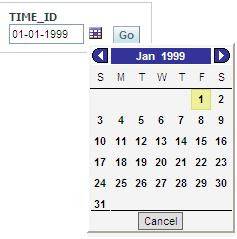

Solution is to synchronize all formats.

dateShortFormat -> d.M.yyyy
dateSeparator -> .
dateOrder -> dmy
Don't forget to enter date format d.M.yyyy in dateFormats entry if it doesn't exist there:

After final test our repository variable is converted from character '01.01.1999' to a date 1.1.1999, before getting into calendar prompt field:

Now, if you choose same value from a calendar, you'll get the same format as before, and that's correct:

With this solution you'll have a full control of date format when you are using calendar so u can use default repository variable that is a character and later you can parse value from a date dashboard prompt to a presentation variable and use it wherever you want to (title, filter).
With above settings in localedefinitions.xml, if we now include default variable rv_test_date_to_char in drop-down list we will get:

No conversion of character 01.01.1999 to a dateShortFormat d.M.yyyy for drop-down list prompts?
So, if we like to see the same format in drop down list with the one we have in variable (character) here is a solution:
In edit column formula write to populate character format:
case when 1=2 then cast(TIMES.TIME_ID as char) else EVALUATE('TO_CHAR(%1,%2)' as varchar(20),TIMES.TIME_ID,'dd.mm.yyyy') end
Open SQL Results and add for test purpose:
SELECT case when 1=2 then cast(TIMES.TIME_ID as char) else EVALUATE('TO_CHAR(%1,%2)' as varchar(20),TIMES.TIME_ID,'dd.mm.yyyy') end FROM "Normal model" where TIMES.CALENDAR_MONTH_DESC='1999-01' order by TIMES.TIME_ID
After a preview we see that the data in drop-down list is in character format (like variable) and order by is correct.

We should use drop-down list only with constraint option (with selecting months as parent) because it's confusing to see to many month values in list.