skip to main |
skip to sidebar
I this post I'll show how to navigate with GO URL between different subject areas (presentation areas, one presentation area is equal to one BMM area).
Example one:
Navigation is between Normal model subject area and Normal model subject area two, which has only renamed logical tables and columns, the physical source is the same for both areas.
BMM subject areas:

Presentation area:

The source report that uses Normal model subject area:
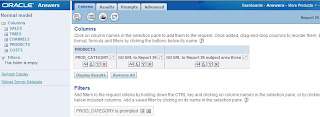
The target report that uses Normal model subject area two:

Column GO URL to Report 26 on the source report:

P2 (target report column) -> PROD.PR_CAT.
P3 (source report column) -> PRODUCTS.PROD_CATEGORY.
Test
I put the source report on the dashboard page.
We will navigate from the third row (Peripherals and Accessories) from the GO URL to Report 26 column:

Before navigation, NQQuery.log for this report:

When navigate to the target report we get:

NQQuery.log for this (target) report:

We see that navigation works fine in this example, when we have navigation between different subject areas that use the same physical tables, the filter is applied on the second report column (logical PROD.PR_CAT, physical PRODUCT.PROD_CATEGORY).
Example two:
Navigation is between Normal model subject area and Normal model subject area three, which has new the physical source, table CATEGORIES with column PROD_CATEGORY, our target column for navigation.
BMM subject areas:

Presentation area:

The source report is the same as in the previous example that uses Normal model subject area.
The target report that uses Normal model subject area three:

Column GO URL to Report 26 subject area three on the source report:

P2 (target report column) -> CATEGORIES.PROD_CATEGORY.
P3 (source report column) -> PRODUCTS.PROD_CATEGORY.
Test
We will navigate from the third row (Peripherals and Accessories), from the GO URL to Report 26 subject area three column:

When navigate to the target report we get:

NQQuery.log for this (target) report:

We see that navigation works fine in this example, when we have navigation between different subject areas that use different physical tables, the filter is applied on the second report column (logical CATEGORIES.PROD_CATEGORY, physical CATEGORIES.PROD_CATEGORY).
This post is translated from Croatian, from one of my previous posts. There are many sources of information and questions on OTN forum on how to use GO URL in OBIEE like this one http://forums.oracle.com/forums/thread.jspa?messageID=3595832 and the basic documentation about this can be found in the presentation services administration guide http://download.oracle.com/docs/cd/E10415_01/doc/bi.1013/b31766.pdf. I will not explain here what is the basic syntax. I'll explain how to replace some characters with unicode codes.
There is a two different type of navigation to a new request. One is option value interaction = navigate, on the column properties:
The second, advanced option is to using GO URL.
If we have characters in the column names in the presentation area that are not standard in the ASCII (they are non-ASCII strings) (see http://www.asciitable.com/) for them we used corresponding UNICODE conversion http://rishida.net/scripts/uniview/conversion, for example Croatian character š is non-ASCII string and has to be replaced with UNICODE.
In our case we are using one report to another combination and parsing current row column value from the source report to the target report filter.
We can use Oracle database functions for ASCII and UNICODE codes:
select dump('š', 1016) from dual--hexadecimal: c5a1
select ASCIISTR('š') from dual--unicode: \0161
select to_number('c5a1', 'XXXX') from dual--hexadecimal to decimal: 50593
select chr(50593) from dual--decimal to ascii: š
The source report:

The target report:

GO URL on the source report:

This is required to set before:

P2 is the target request column and P3 is the source request column.
P2 (target) -> Proizvod."%u0160ifra%20proizvoda
P3 (source) -> REPLACE(Proizvod."Šifra proizvoda", ' ', '%20')
*Note that Š is replaced with %u0160 unicode and space with %20 only in the target column. This is related only to a presentation column name. For the source column name we leaved Š and spaces (Proizvod."Šifra proizvoda") and replace space in data inside it (with %20).
Inside P3 (source) it's necessary to replace space with %20, because if there is a space in the data (for example PR 0107) without replacing it with corresponding UNICOD or hexadecimal codes we woudle get only first string (PR) and the second (0107) is cutted.
For example, for spaces we use:
select dump(' ', 1016) from dual--hexadecimal: 20
or
http://rishida.net/scripts/uniview/conversion
If we notice that some of characters are not properly transferred we need to replace them all as well, for example > character should be replaced with REPLACE(Proizvod."Šifra proizvoda", '>', '%3E'), because:
select dump('>', 1016) from dual--hexadecimal: 3e
P3 (source) can be any presentation column, constant, session or repository variable. In our example it is presentation column Proizvod.Šifra proizvoda.
Now if we use for example static repository variable P3 -> VALUEOF("v_sifra") as a source parameter from the source report instead of presentation column we would have GO URL like this: